Tour the app
Find your way around the signed-in app — sidebar, header, My Dashboard, composer, settings, and billing.
Connect your agent today
Draft from chat, review in your calendar, and publish only what you approve.
Overview
Where every sidebar page lives and what you do there — My Dashboard, calendar, plugs, analytics, and settings.
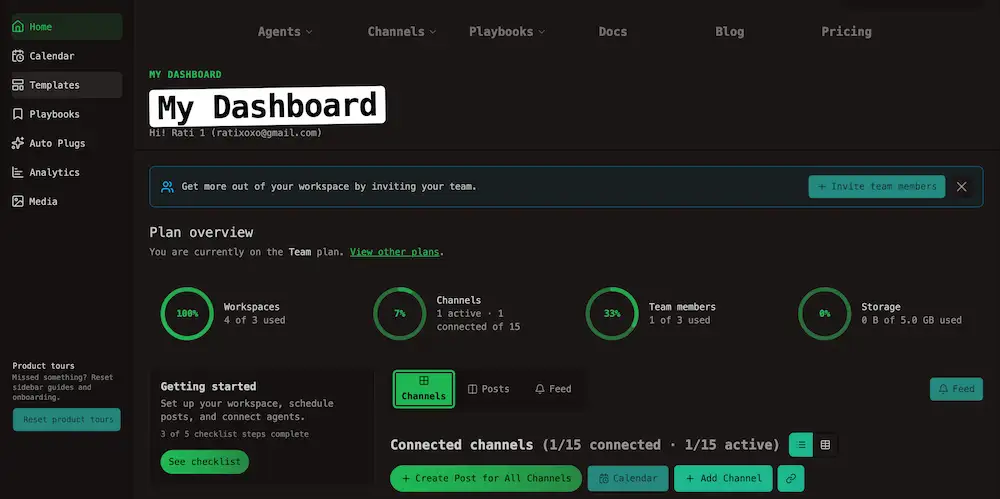
Most of our features are put behind the left sidebar.
Tip
The sidebar footer has Reset product tours if you want those guides again.
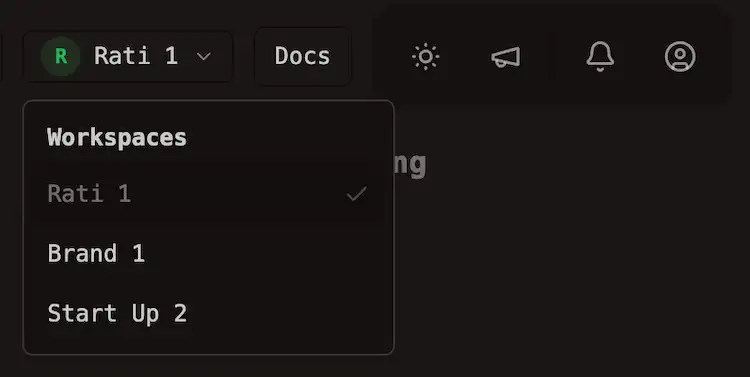
You can switch workspaces from the header switcher or from the workspace cards on My Dashboard.
Tip
Workspace cards appear on My Dashboard only. On Calendar, Templates, Playbooks, Auto Plugs, Analytics, and Media, switch workspace from the header.
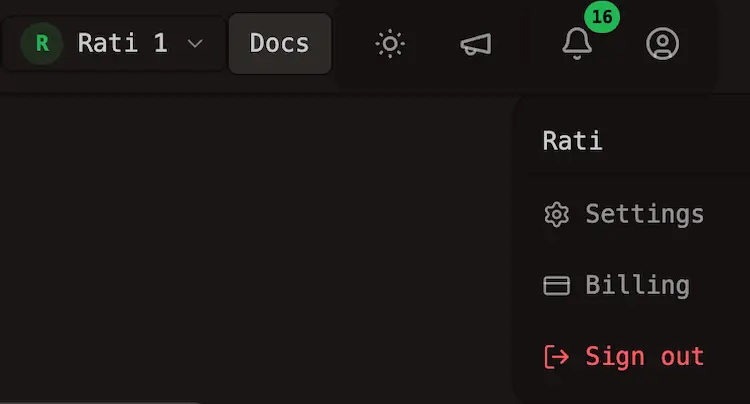
Settings and Billing sit under the account menu.
Left sidebar
| Label | Path | What you do there |
|---|---|---|
| My Dashboard | /account | Plan overview, workspace cards, Channels / Posts / Feed tabs (connected channels, kanban, notifications), Getting started card with See checklist, Create Post |
| Calendar | /account/calendar | Month or week of scheduled and published posts |
| Templates | /account/templates | Saved composer presets — see Templates |
| Playbooks | /account/playbooks | Browse, bookmark, and edit playbooks and building blocks — see Playbooks |
| Auto Plugs | /account/plugs | Global channel rules after publish — see Global plugs |
| Analytics | /account/analytics | Reach and engagement after publish — see Insights → Workspace analytics |
| Media | /account/media | Image and video library — see Media library. Cloud caps are on Cloud limits |
Header
The header is independent of the sidebar.
| Control | Role |
|---|---|
| Workspace switcher | Loads another workspace you belong to |
| Docs | This documentation |
| Notifications | Publish failures and review notes — same preview as My Dashboard Feed |
| Theme | Light or dark |
| Feedback | Send a note to the team |
| Account menu | Settings, Billing, sign out |
My Dashboard, calendar, and the composer
My Dashboard is your workspace dashboard. Plan overview at the top summarizes workspace, channel, and storage usage. Below that, the layout has a left column and a main panel with tabs.
The left column holds a Getting started card, plus workspace cards. Use them to switch workspace, create one, accept invites, or open OAuth Secrets, API key, or Add channel on the current workspace.
The main panel uses pill tabs:
| Tab | What you do there |
|---|---|
| Channels | Connected channel grid or table, Add Channel, channel menus, and smart filters on the table view |
| Posts | Kanban columns for draft, scheduled, and published post groups (when the workspace has at least one social channel) |
| Feed | In-app notifications — publish results, failures, and review notes (same data as the header bell) |
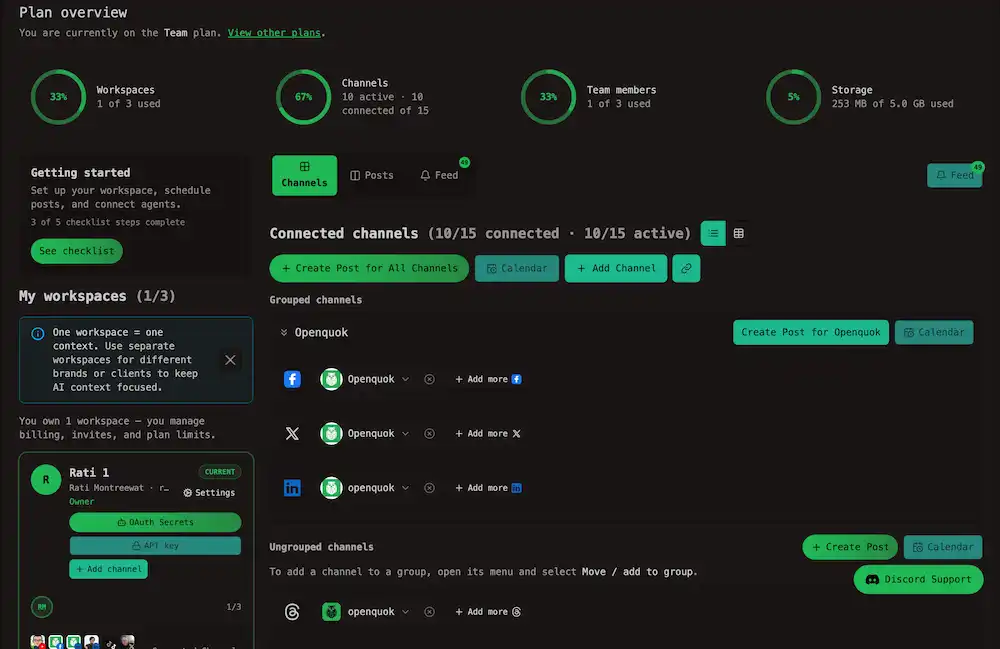
A Feed button beside the tab bar on wider layouts also switches to the Feed tab and shows an unread badge.
The calendar is the same posts laid out by date at /account/calendar.
The post editor is a modal, not a sidebar page. Open it with Create Post from the Channels or Posts tab on My Dashboard, or from a calendar — when the workspace has saved templates, the Select a template picker appears first. See Creating posts and Templates for layout, flow, and preset workflows.
| Action | Where it lives |
|---|---|
| Add Channel | My Dashboard Channels tab, Add channel on the current workspace card, or the channel picker in the composer |
| Reconnect or disconnect a channel | Channel card menu on the Channels tab |
| Channel groups | Group controls on the Channels tab and kanban filters on the Posts tab — see Channel groups |
| Smart filters | Channels tab table Add filters; kanban and calendar dropdowns; Templates and Auto Plugs tables — see Smart filter |
| Per-network fields | Composer, beside the preview |
| Tags | Composer footer — see Tag in the glossary |
| Signatures | Composer toolbar — see Signatures |
| Internal (per-post) plugs | Composer Settings accordion — see Internal plugs |
| Cross-account (per-post) plugs | Composer Plug settings — see Cross-account plugs |
| Shareable preview | Post card actions — see Approvals. Public URL under /p/ plus the post id |
Settings
| Tab | Purpose |
|---|---|
| Timezone | Workspace posting timezone — see Timezone |
| Workspace | Name, team invites, roles — see Team |
| Profile | Display name and account preferences — see Profile |
| Developers | opo_ programmatic tokens, MCP connection snippets, OAuth apps — see Developers |
| Approved Apps | Third-party apps you granted access — see Approved apps |
| Signatures | Reusable sign-offs you can append in the composer — see Signatures |
Warning
Programmatic tokens are shown once when generated. Store them in a password manager or CI secret. Rotating a token invalidates the previous value immediately.
CLI device login does not require pasting a token — see CLI authentication.
Payload Wizard
Payload Wizard at /account/payload-wizard is the same editor on a full page, then copy JSON for the public API. It is a page, not a sidebar item. Developers → Access links here. See Creating posts → Payload Wizard.
Billing
/account/billing is also under the account menu. It is limited to workspace owners.Self-hosted installs
If Stripe is unset, Billing is hidden or shown as not configured. There is no Cloud subscription to manage. See Self-hosting.