Per-post metrics
View stats for one published post — date ranges, and API access.
Connect your agent today
Draft from chat, review in your calendar, and publish only what you approve.
Per-post metrics
Stats for one published post — not whole-channel totals on Analytics.
Where: Open a post from My Dashboard or the calendar, then choose Statistics in Post actions.
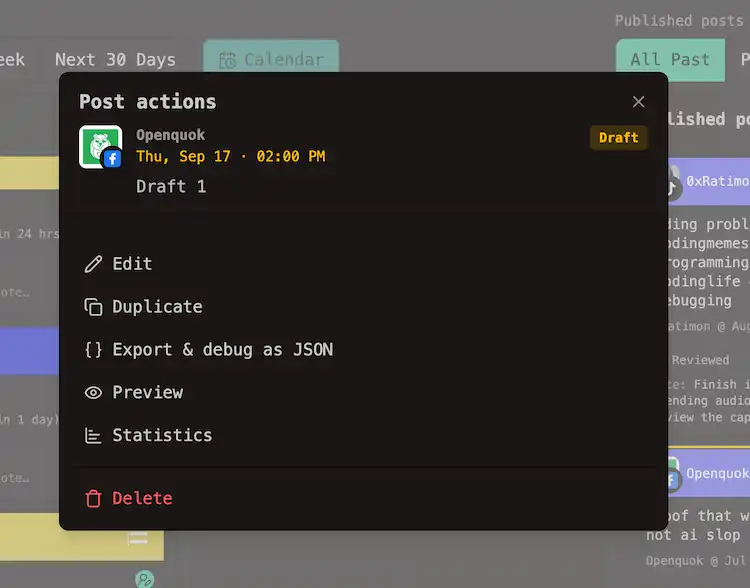
For the full step-by-step, see Actions and stats.
Channel-wide charts live under Analytics in the sidebar. See Workspace analytics for those totals and Trends.
Warning
Not every channel reports per-post stats. See which ones do in Platforms → Analytics.
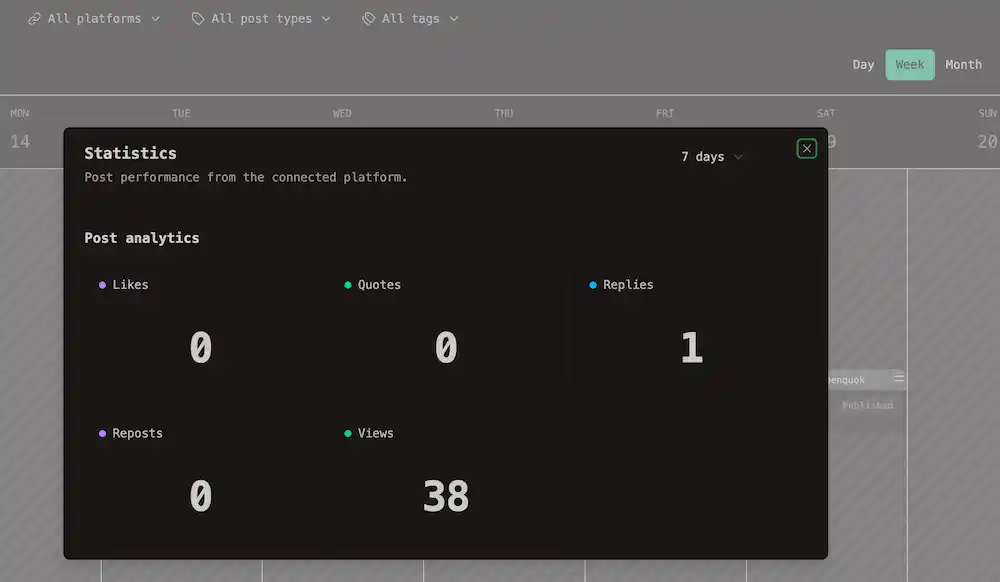
Statistics dialog
| Control | What it does |
|---|---|
| 7 days · 30 days · 90 days | How far back the numbers go (same choices as workspace Analytics). |
| Rows in the dialog | Views, engagement, and anything else the network sends for that post. |
Warning
Connect a missing post
Sometimes RedPanda cannot match your post to content on the network. Statistics then asks you to pick the right item:
Select the content that matches this post:
Choose the matching thumbnail and click Connect post. When it works, you see Post connected.
Note
Per-post analytics over the API
Programmatic access uses the same date windows as the Statistics dialog:
- Analytics APIs — per-post endpoint with the same date window
- CLI — analytics:post for a **published** post row
- MCP — analyticsPost
To link a post without the UI, the CLI equivalent of Connect post is posts:connect. List candidates with posts:missing, then pass the post row id and provider release id. See Managing posts → Connect a post and Update Release ID.
Tip
The same 7, 30, and 90 day windows apply in the Statistics dialog, workspace **Analytics**, MCP, and CLI.